
Phone and switchboard
Answer the phone in your browser.
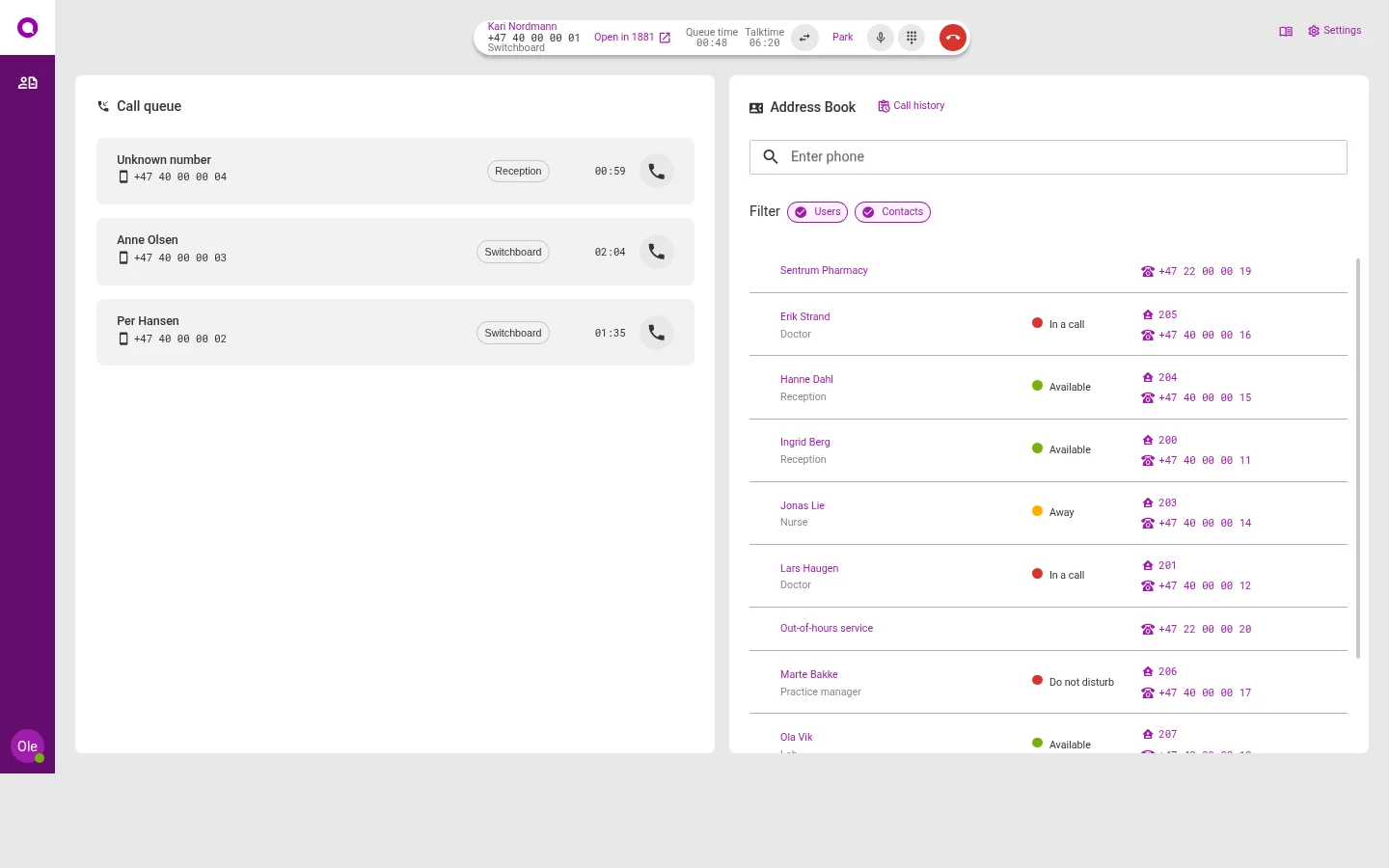
Everyone who answers sees the same queue. You see who is waiting, and which colleagues are free.
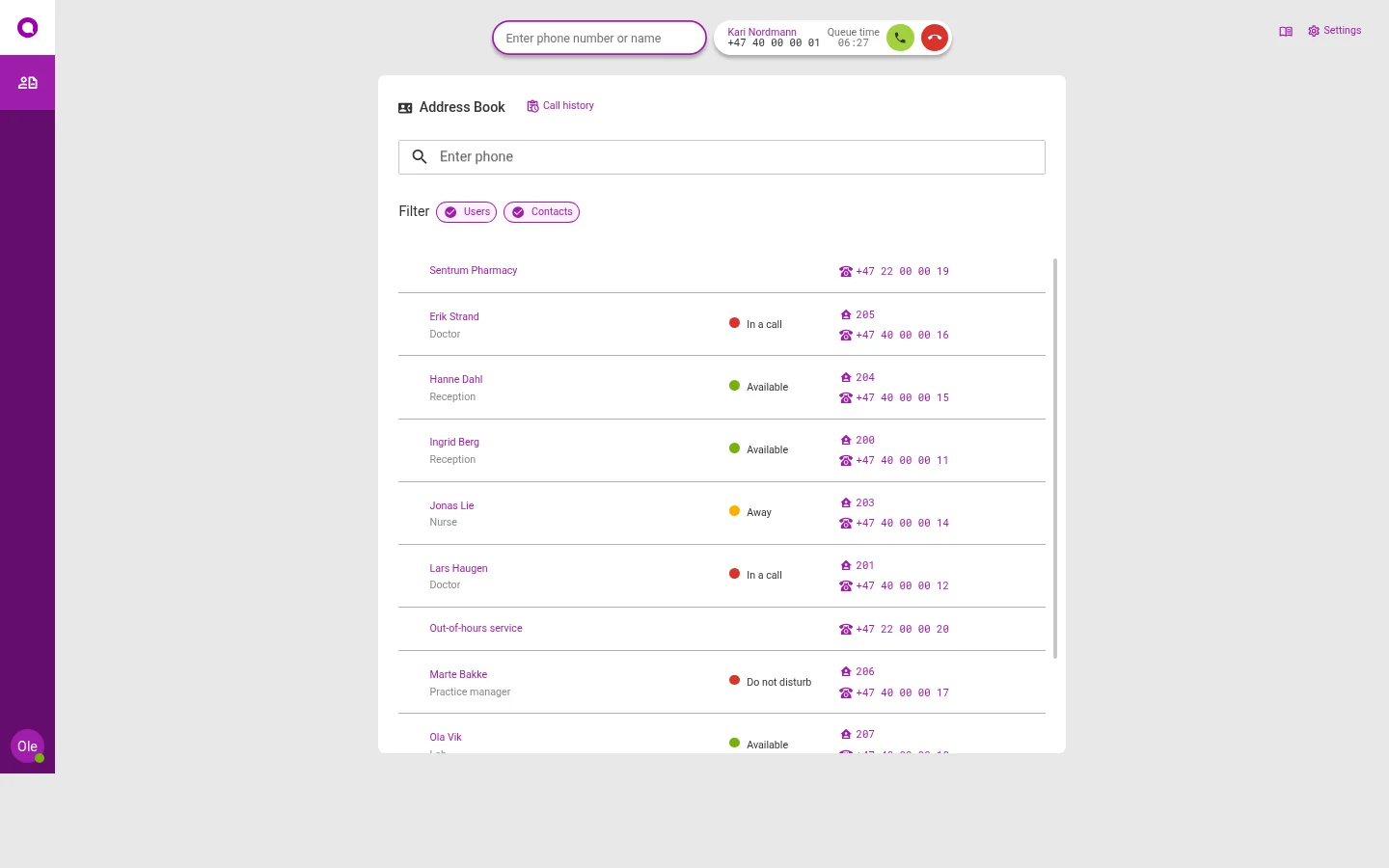
My page is your phone
This is where you make calls and take calls meant for you. In the address book, you see if a colleague is free, on a call or away.
- Search by name or number
- Pin the colleagues you call most
- See a colleague's calendar
- Find your earlier calls
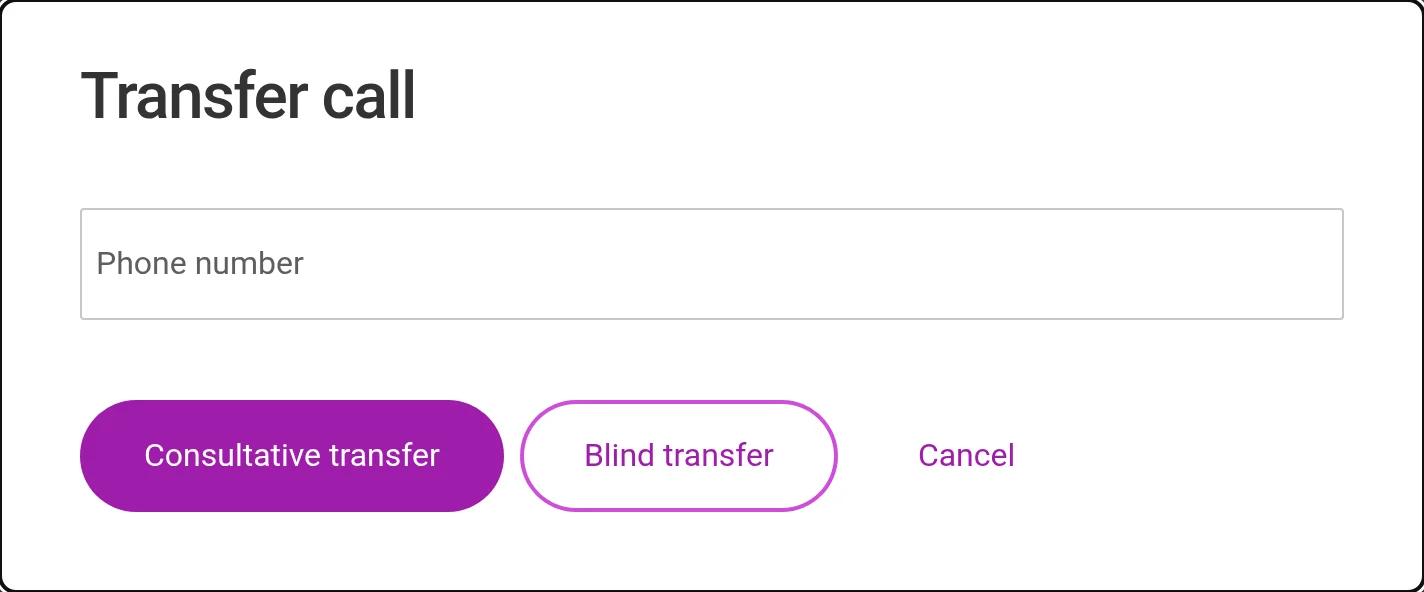
Transfer in two ways
Transfer the call straight away. Or talk to your colleague first, and transfer when they are ready.
- Park a call while you check something
- Use the keypad when a phone menu asks you to
- Get a little time to finish writing before the next call
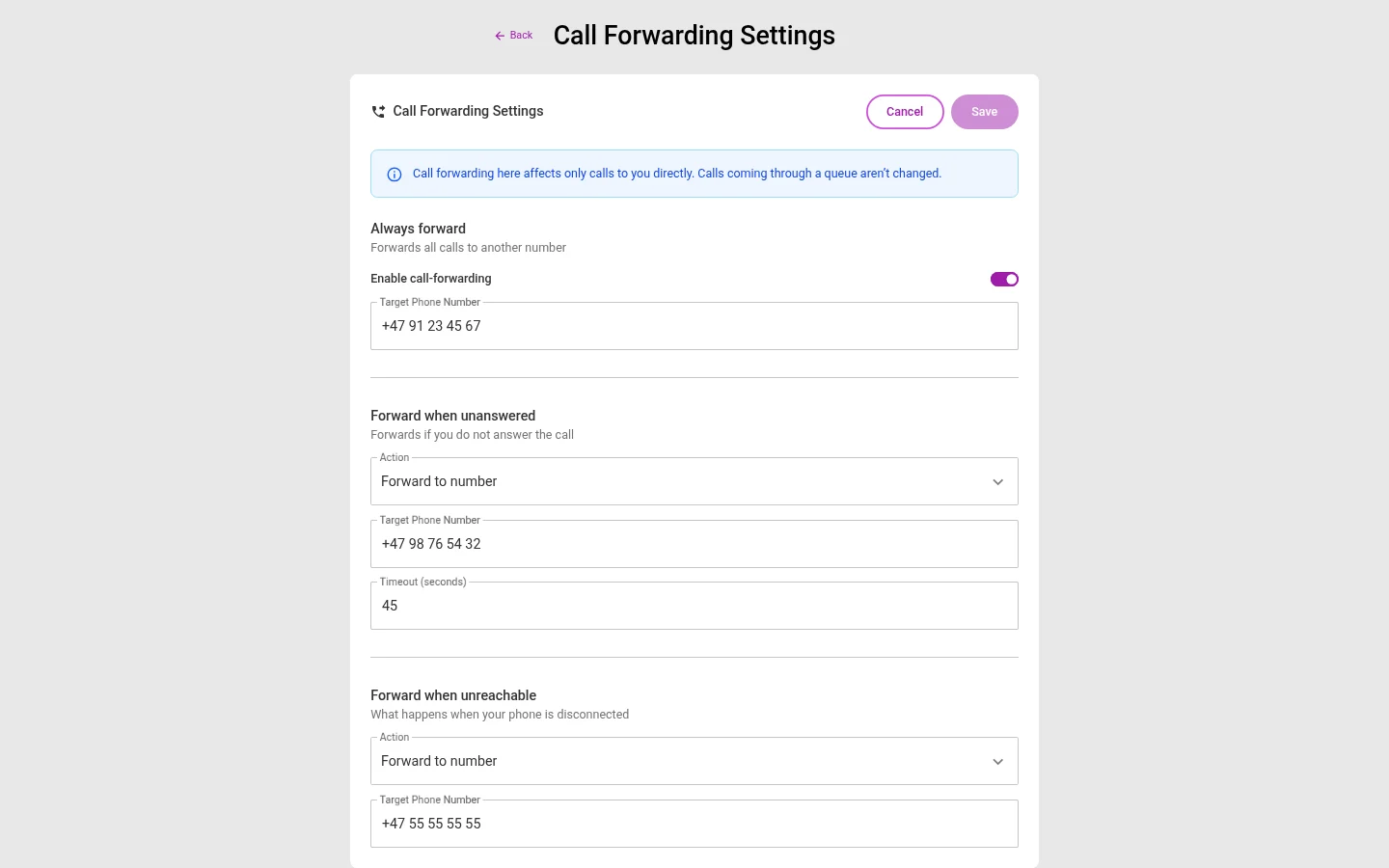
Choose what happens when you do not answer
Forward calls to your mobile or to a colleague. This applies to calls that come straight to you, not calls in the queue.
- Forward all calls
- Forward when you do not answer
- Forward when you are logged out
What is included
Equipment
You do not need new equipment to get started.
- Ordinary USB headsetsPlug in, and answer in the browser.
- Desk phonesCisco, Snom, Gigaset, Polycom and Mitel set themselves up when you plug them in.
- Your mobileCall out with your company number in Omnicus Go.
Status
Your colleagues see if you can take a call.
- Available, away or do not disturbYou choose. With do not disturb, your phone does not ring.
- On a callYour colleagues see it straight away, so they do not transfer calls to you.
- Time to finish writingAfter a call, you get a little time before the next one comes.
When someone calls
You see who it is before you answer.
- The name is shownIf the caller is in the address book, you see the name, not just the number.
- Each queue has its own colourSo you can see if the call is for reception or for appointments.
- AI can answer firstAI can answer what you have decided, like the opening hours. The rest goes to you.
- Look up the caller in another systemFor example 1881, with one click.
Questions about the phone system
Do we need new phones?
No. You answer in the browser with a headset. If you have desk phones from Cisco, Snom, Gigaset, Polycom or Mitel, they can be set up automatically.
Can I work from home?
Yes. You log in to the browser wherever you are. You see the same queue as your colleagues.
Which headsets work?
Most USB headsets work. With Jabra, EPOS and Yealink, you can answer and hang up with the button on the headset.
What does the caller hear when you are closed?
You decide. Read about opening hours.
See it set up the way you work
In the demo we show the channels you need, with the queues and opening hours you have today. We also answer questions about price and getting started.